How to Use Google Gemini: Complete Guide for Beginners (2026)
What Is Google Gemini?
Google Gemini is Google's flagship AI assistant, evolved from the Bard era into a powerful, multimodal system that rivals ChatGPT and Claude. Launched in December 2024 and rapidly iterated through 2026, Gemini can handle text, images, code, and even real-time information through Google Search integration. It's deeply embedded into Google's ecosystem—Gmail, Docs, Sheets, Android—making it one of the most accessible AI tools ever built.
Unlike ChatGPT's subscription-first model, Gemini offers a free tier that's genuinely useful. The paid tier, Gemini Advanced (part of Google One), unlocks longer conversations, Imagen 3 image generation, and better reasoning for $20/month.
Step 1: Access Gemini (Free or Advanced)
Free Version
Navigate to gemini.google.com and sign in with any Google account. No credit card required. You get:
- Unlimited conversations (though with occasional slowness during peak hours)
- Image analysis and understanding
- Code execution and debugging
- Real-time Google Search integration
- Text-to-image generation (limited monthly quota with Imagen 2)
Gemini Advanced
Subscribe to Google One AI Premium for $20/month:
- Go to your Google Account settings → Subscription
- Select "Google One" and choose the AI Premium tier
- You'll get:
- Imagen 3 for image generation (higher quality, faster)
- Longer context windows (up to 1M tokens with Gemini 1.5 Pro)
- Priority processing during peak hours
- Early access to new features
Pro tip: If you already subscribe to Google One for storage, adding AI Premium is just $2 extra on top of your existing plan—check your Google One dashboard.
Step 2: Navigate the Gemini Interface
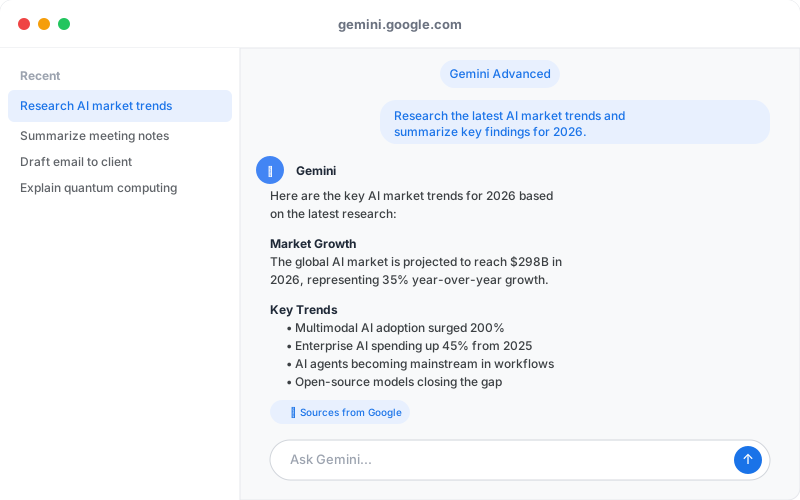
The Gemini web interface is refreshingly clean:
- Left sidebar: Toggle Dark/Light mode, create new chats, access saved conversations (pinned), see recent history
- Main chat area: Your conversation thread. Unlike ChatGPT, Gemini shows sources for web-searched answers
- Top right: Google account menu, feedback button (use this—Google reads it)
- Bottom input: Type here. Attach images, enable Google Search toggle, and add "@Google" to cite web results
Key difference from ChatGPT: Google Search is built-in. You don't need to pay extra or toggle "Browse with Bing"—click the Google icon to include live web results in your response.
Step 3: Craft Effective Gemini Prompts
Gemini responds well to structure. Unlike some AI models that struggle with vague requests, Gemini excels at following clear instructions.
Prompt Framework for Gemini
- Context: "I'm writing a blog post about renewable energy for beginners"
- Task: "Generate an outline with 5 main sections"
- Constraints: "Keep it under 500 words, use simple language, avoid jargon"
- Format: "Markdown with emoji headers"
Real Example
Weak prompt: "Tell me about AI"
Strong prompt: "I'm learning about large language models for my tech newsletter. Explain transformer architecture and attention mechanisms in 200 words, targeting readers with basic programming knowledge but no ML background. Use analogies."
Gemini especially appreciates:
- Specifying the audience level (beginner, intermediate, expert)
- Naming the format (bullet list, table, essay, code snippet)
- Stating word count or depth limits
- Asking for comparisons or examples
Step 4: Generate Images with Imagen
Gemini's image generation has evolved dramatically. If you're on Advanced, you have access to Imagen 3, which rivals DALL-E 3 for photorealism and detail.
How to Generate Images in Gemini
- Type a prompt like: "A cozy coffee shop in Tokyo at dusk, warm lighting, photorealistic"
- Gemini recognizes this as an image request and offers to generate
- Click "Generate with Imagen" or type
/imaginebefore your prompt - Wait 10-30 seconds (faster on Advanced)
- You get 4 variations. Click "Refine" to regenerate with tweaks, or "Improve" to upscale
Imagen Prompting Tips
- Be visual and specific: "A glass of cold brew coffee with ice, shot from above on a wooden table" beats "coffee cup"
- Avoid people: Imagen struggles with faces and hand anatomy (as of 2026, this is improving but still flaky)
- Use modifiers: "cinematic, 4K, bokeh, volumetric lighting"
- Reference styles: "in the style of a 1970s Vogue magazine cover"
Free tier note: You get about 25 image generations/month on the free plan. Advanced users get unlimited.
Step 5: Use Gemini Across Google Workspace
This is where Gemini shines—it's built into the tools you already use.
Gmail
- Compose: Click the Gemini sparkle icon to draft emails. Say "Draft a professional email declining a meeting, keeping it warm" and Gemini writes it instantly
- Summarize: Large inbox? Click the summarize icon on a thread for TL;DR
- Reply assist: "Reply to this client's complaint with empathy and a solution"
Google Docs
- "Help me write": Highlight a section, click the Gemini icon, and ask for rewrites, translations, or tone shifts
- Outlining: Start a doc with "# Outline" and ask Gemini to expand it into full sections with content
- Real-time collaboration: If you're working with a team, Gemini suggestions are visible to all editors
Google Sheets
- Formulas: "Create a formula that calculates customer lifetime value using columns A–E"
- Data analysis: "Summarize the trends in this sales data"
Android Phones
Gemini is built into Pixel phones and most modern Android devices:
- Long-press the home button to open Gemini
- Ask questions, set reminders, create documents while on-the-go
- "Text my boss that I'm running 10 minutes late" → Gemini drafts and sends
Step 6: Leverage Real-Time Search
One underrated feature: Gemini searches Google in real-time within conversations.
- Type a question: "What's the latest news on OpenAI in April 2026?"
- Toggle the Google search icon (looks like a magnifying glass with a "G")
- Gemini pulls live results and synthesizes them with citations
| Feature | Free Gemini | Advanced | ChatGPT Plus |
|---|---|---|---|
| Real-time search | Yes | Yes | No (unless using web search mode) |
| Image generation | Yes (limited) | Yes (unlimited, Imagen 3) | Yes (DALL-E 3) |
| Workspace integration | Yes | Yes | No |
| Context window | 100k tokens | 1M tokens | 128k tokens (GPT-4 Turbo) |
| Price | Free | $20/month | $20/month |
Step 7: Advanced Workflows for Research & Analysis
Competitive Analysis
Prompt: "I'm analyzing my competitors. Search for [Competitor A] pricing page, summarize their value prop, and compare to my positioning in a table."
Gemini pulls current pricing, analyzes it, and gives you actionable insights in minutes.
Content Research
Instead of bouncing between tabs:
- "Research the top 5 SEO ranking factors for 2026 using Google Search. Create a prioritized list with evidence for each."
- Gemini searches, synthesizes, and cites sources. Faster than reading 10 articles.
Code Debugging
Paste your code (even large blocks) and ask:
- "Why does this React component re-render on every keystroke? Fix it and explain the issue."
- Gemini identifies the problem, provides optimized code, and explains the fix.
Step 8: Multi-Image Analysis
You can upload multiple screenshots or images for Gemini to compare:
- Click the image attachment button in the chat
- Upload 2-3 images (or more)
- Ask: "Compare these three UI designs. Which is most intuitive? Why?"
Gemini analyzes all of them together—perfect for A/B testing, design reviews, or comparing SaaS interfaces.
Common Mistakes to Avoid
-
Asking vague questions: "What's machine learning?" gets a generic answer. "Explain machine learning to a high school student interested in gaming" gets a targeted answer.
-
Forgetting to toggle web search: If you need current info and forget to click the Google icon, Gemini will tell you its knowledge cutoff (April 2024 for this writing).
-
Expecting Gemini to remember previous conversations: Each chat is separate. If you need continuity, keep the conversation in one thread or summarize context at the start.
-
Uploading sensitive company data without review: Treat Gemini like ChatGPT—don't paste unredacted customer lists, financial data, or trade secrets. Google's privacy policy protects user data, but it's still stored.
-
Ignoring the "Edit and resend" feature: Made a typo 5 messages ago? Click the three-dot menu on any message and edit it—Gemini regenerates everything after that point.
Tips Pros Use
- Use "/help" in Gemini to see a menu of advanced commands (varies by region/device)
- Pin important responses by clicking the pin icon—they appear in your sidebar for quick reference
- Combine prompts with Google Sheets: Export data to Sheets, reference the Sheets in Gemini, ask it to analyze—then insert insights back into a Doc
- Test Gemini Deep Research (available on Advanced): For complex topics, ask "Do a deep research report on [topic]" and Gemini will search multiple sources and compile a thorough analysis
- Use "Custom instructions" in settings to give Gemini standing context (e.g., "I'm a software engineer" or "Write in a conversational tone")
Gemini vs ChatGPT: Quick Comparison
Choose Gemini if:
- You're already in Google's ecosystem (Gmail, Docs, Workspace)
- You want a free tier that's genuinely powerful
- You need real-time web search built-in
- You value image generation and multimodal analysis
Choose ChatGPT if:
- You prefer OpenAI's model behavior and fine-tuning
- You need advanced plugins and integrations
- You want the most mature ecosystem of third-party tools
- You're willing to pay for GPT-4 Turbo's extended reasoning
Related Reading
- Best AI Chatbots in 2026 — Compare Gemini, ChatGPT, Claude, and more
- How to Write AI Prompts That Work — Master prompting across all models
- Gemini vs ChatGPT: Full Comparison — Head-to-head analysis
- Best ChatGPT Alternatives — Find your next AI tool
- Claude vs Gemini: Which AI Is Best? — Enterprise vs. integration
- Best Free AI Tools — More free alternatives like Gemini