How to Use Microsoft Copilot: Complete Guide (2026)
What Is Microsoft Copilot?
Microsoft Copilot is an AI assistant built on OpenAI's GPT-4 that integrates deeply into Microsoft's ecosystem. Unlike ChatGPT (a standalone web app), Copilot lives inside Windows, Microsoft 365 apps (Word, Excel, PowerPoint, Outlook, Teams), and the web browser. It's designed to help you write, analyze, code, create images, and research—all without leaving your familiar Office tools.
In 2026, Copilot has become the default AI assistant for millions of Office users. Whether you're a free user on copilot.microsoft.com or a Pro subscriber with M365 integration, this guide will show you exactly how to use Copilot's full range of features.
Copilot Plans: Free vs Pro vs Microsoft 365
Before diving in, understand which Copilot version you have access to:
| Feature | Free (Web) | Copilot Pro | M365 Copilot |
|---|---|---|---|
| Chat & Writing | Yes | Yes | Yes |
| Image Generation (Designer) | 15/month | Unlimited | Unlimited |
| Office Integration | No | Limited web | Full (Word, Excel, PowerPoint, Outlook, Teams) |
| Priority Access | No | Yes | Yes |
| Voice Chat | Yes | Yes | Yes |
| GPT-4 Turbo | Yes | Yes | Yes |
| Price | Free | $20/month | Included in Microsoft 365 (typically $20/month personal or enterprise) |
Pro tip: If you use Microsoft 365 for work or school, you likely already have M365 Copilot included. Check your Office apps first before buying a separate Pro subscription.
Getting Started: Web Access (Free)
The easiest way to try Copilot is on the web at copilot.microsoft.com.
Step 1: Sign In
- Go to copilot.microsoft.com
- Click Sign In in the top-right corner
- Use your Microsoft account (Outlook, Xbox, or personal Microsoft account)
- If you don't have one, create a free account
Step 2: Your First Chat
Once logged in, you'll see the main chat interface with a text box saying "Ask me anything."
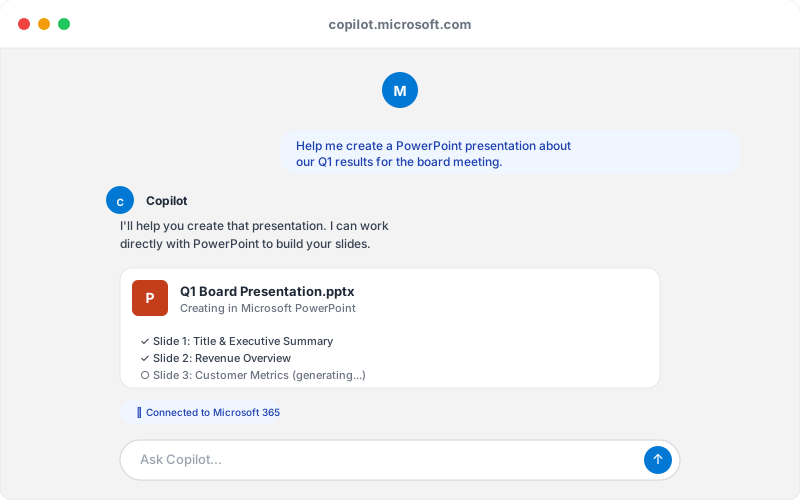
Type a prompt and press Enter. For example:
- "Explain quantum computing in simple terms"
- "Write a LinkedIn post about AI trends"
- "Help me debug this Python code: [paste code]"
Copilot responds with detailed, conversational answers. You can ask follow-up questions, request rewrites, or ask it to expand on ideas.
Step 3: Enable "Precise" Mode for Accuracy
By default, Copilot uses "Balanced" mode. For research, fact-checking, or code review, switch to Precise mode:
- Look for the three sliders icon (⚖️) in the chat interface
- Click Precise for stricter, more focused answers
For creative tasks (brainstorming, drafting), use Creative mode for more varied, imaginative output.
Using Copilot in Microsoft 365 Apps
If you have Copilot Pro or M365 Copilot, the real power comes from integration with Office apps. Copilot becomes a co-pilot inside Word, Excel, PowerPoint, Outlook, and Teams.
Copilot in Word
Scenario: You need to write a report, but don't know where to start.
- Open Word and create a new document
- In the Home ribbon, click the Copilot icon (usually top-right or in the toolbar)
- A side panel opens. Select Draft with Copilot
- Enter a prompt: "Write a 500-word report on the impact of AI on healthcare, including recent statistics"
- Copilot generates a full draft. You can ask it to:
- Rewrite paragraphs for clarity or tone
- Expand or shorten sections
- Add citations (Copilot will suggest sources)
- Adjust formality level
Editing with Copilot:
- Select text in your document
- Click the Copilot icon or right-click → Copilot options
- Choose Rewrite, Simplify, Formalize, or Adjust tone
This works brilliantly for polishing emails, resumes, or reports in seconds.
Copilot in Excel
Scenario: You have a spreadsheet of sales data and need analysis.
- Open Excel and load your data
- Click Copilot in the ribbon
- Ask natural language questions:
- "Summarize Q1 sales by region"
- "What's the trend in customer acquisition this year?"
- "Create a pivot table showing top 10 products by revenue"
- Copilot not only answers but can create formulas, charts, and pivot tables automatically
Formula Help: If you see a formula you don't understand, select it and ask Copilot to explain it step-by-step. It's like having an Excel expert sitting next to you.
Copilot in PowerPoint
Scenario: You need slides for a presentation fast.
- Open PowerPoint and click Copilot
- Select Create Presentation or Create Outline
- Describe your topic: "Create a 10-slide deck on marketing automation best practices"
- Copilot generates an outline, then full slides with bullets, design suggestions, and speaker notes
- You can ask it to:
- Rewrite specific slides
- Add speaker notes to a slide
- Change the design theme
- Suggest imagery or data visualizations
Copilot in Outlook
Scenario: You're drowning in emails and need summaries.
- Open Outlook inbox
- Click Copilot (usually top-right)
- Use Summarize this email thread to condense long chains into key points
- Use Draft with Copilot to:
- Write professional replies
- Adjust tone (formal, casual, apologetic)
- Translate emails
Pro tip: In Outlook, Copilot respects your calendar and context. It knows who you're emailing and can draft responses appropriate to your relationship.
Copilot in Teams
Scenario: You missed a long meeting and need notes.
- Open Teams chat or meeting
- Click the Copilot icon
- Get Meeting Recap — a summary of discussion, decisions, and action items
- Ask follow-ups: "Who was assigned the budget review? When's the deadline?"
- Draft messages directly in chat with Copilot's help
For group chats, Copilot summarizes conversations, tracks decisions, and highlights action items.
Image Generation: Copilot Designer
Copilot includes Designer (formerly Bing Image Creator) for AI-generated images.
Step 1: Access Designer
- On web: copilot.microsoft.com → Click the Image Generator tab, or describe an image in chat
- In Office: Insert → Icons → Search → Designer (Word/PowerPoint)
Step 2: Write a Detailed Prompt
Be specific. Instead of "cat," try: "A tabby cat sitting on a vintage wooden window sill, warm golden sunlight streaming through, watercolor style, soft focus background"
Step 3: Generate & Refine
- Copilot generates 4 image options
- Choose your favorite or request variations
- Adjust: "Make it more vibrant" or "Soften the colors"
- Download the final image
Free users: 15 images/month. Pro users: Unlimited.
Note: Designer images are free to use commercially if generated with Copilot Pro. Check licensing for free tier.
Copilot on Mobile
Microsoft provides Copilot apps for iOS and Android.
- Download Microsoft Copilot from App Store or Google Play
- Sign in with your Microsoft account
- Chat exactly like the web version
- Voice input is particularly useful on mobile: tap the mic icon and speak your question
- Share images from your phone to ask Copilot questions about them (e.g., "Can you identify what plant this is?")
The mobile app syncs your chat history across devices, so your conversations are always available.
Bing Search Integration
Copilot on the web searches the internet in real-time. When you ask a current events question, it retrieves live results and cites sources.
Example:
- Question: "What are today's top tech news stories?"
- Copilot: Returns current news with clickable source links
This is where Copilot differs significantly from ChatGPT (which has a knowledge cutoff). For research, news, or fact-checking, Copilot is often more accurate.
Best Prompts for Office Tasks
Here are prompt templates that work exceptionally well with Copilot:
| Task | Best Prompt |
|---|---|
| Draft an email | "Draft a professional email to [recipient] asking for [request]. Tone: [formal/friendly]. Keep it under 100 words." |
| Summarize document | "Summarize this [document type] in 3 bullet points, highlighting key decisions and deadlines." |
| Generate ideas | "Brainstorm 10 creative [blog post/product/marketing campaign] ideas for [industry/audience]." |
| Analyze data | "I have sales data for [product] across [regions]. What patterns do you see? Suggest 2 actions." |
| Explain concept | "Explain [complex topic] as if I'm a [profession/age group]. Use examples from [industry]." |
| Code review | "Review this [language] code for bugs, performance issues, and security. Suggest improvements. [paste code]" |
| Create outline | "Create a detailed outline for a [document type] about [topic]. Include subsections and key points to cover." |
Copilot vs ChatGPT: When to Use Each
| Use Copilot | Use ChatGPT |
|---|---|
| Office work (Word, Excel, PowerPoint) | Deep research / coding projects |
| Current events / live web search needed | Creative writing / brainstorming |
| Microsoft 365 integration critical | Custom plugins / advanced features |
| Free tier with web chat | Premium features / priority |
| Summarizing emails/meetings | Fine-tuning on custom data |
Common Tips & Tricks
- Cite sources: In Copilot's Precise mode, it always cites sources for web-based answers.
- Regenerate responses: Click the redo icon to get a different answer to the same prompt.
- Clear chat history: For privacy, clear your chat on copilot.microsoft.com → Settings.
- Use keyboard shortcuts: In Outlook/Word, Ctrl+Shift+C opens Copilot quickly.
- Save important chats: Pin conversations in Copilot's sidebar for quick reference.
- Combine tools: Start research in Copilot (web), draft in Word (Copilot), polish in Outlook (Copilot).
Troubleshooting
Q: Copilot is grayed out in my Office app. A: Ensure you have Copilot Pro or M365 Copilot license. Free web-only users won't see Office integration.
Q: Image generation hit my monthly limit. A: Free users get 15/month. Upgrade to Pro for unlimited, or wait until next month.
Q: Copilot gave outdated information. A: Switch to Precise mode for web search integration. ChatGPT has a knowledge cutoff; Copilot searches live.
Q: I'm not in the US. Is Copilot available? A: Most features are global, but image generation (Designer) has regional restrictions. VPN may help, but check local laws.